

API Overview
 _   _      _ _                            _     _   _
| | | |    | | |                          | |   | | | |
| |_| | ___| | | ___   __      _____  _ __| | __| | | |
|  _  |/ _ \ | |/ _ \  \ \ /\ / / _ \| '__| |/ _` | | |
| | | |  __/ | | (_) |  \ V  V / (_) | |  | | (_| | |_|
\_| |_/\___|_|_|\___/    \_/\_/ \___/|_|  |_|\__,_| (_)
The purpose of this documentation is to understand the list of available Storeplum APIs and their corresponding requests and response for a seamless integration of Storeplum with your app. Storeplum API 1.0 allows data to be created, read and updated using requests in JSON format and using standard REST HTTP methods which are understood by most of the HTTP clients.
The current Storeplum REST API integration version is v1 which takes a first-order position in endpoints.
The documentation language binding is in Shell. You can view code examples in the dark area to the right, and you can switch the programming language of the examples with the tabs in the top right.
Request/Response Format
The default response format is JSON. Requests with a responseMessage-body use plain JSON to set or update resource attributes. Successful requests will return a 200 OK HTTP status.
Some general information about responses:
- Resource IDs are returned as integers.
- Any decimal monetary amount, such as prices or totals, will be returned as Number with two decimal places.
- Other amounts, such as item counts, are returned as integers.
- Blank fields are generally included as null or emtpy String instead of being omitted.
Authentication
To authorize, use this code:
# With shell, you can just pass the correct header with each request
curl "https://api.storeplum.in/integration/example-endpoint" \
  -H "X-SP-INTEGRATION: <YOUR-API-KEY>"
Make sure to replace the value for header
x-sp-integrationwith your API key.
Each incoming request from your app to Storeplum API has to be authenticated using an API key. Storeplum uses pre-generated API key for external integrations which can be obtained in Storeplum Dashboard under integrations section.
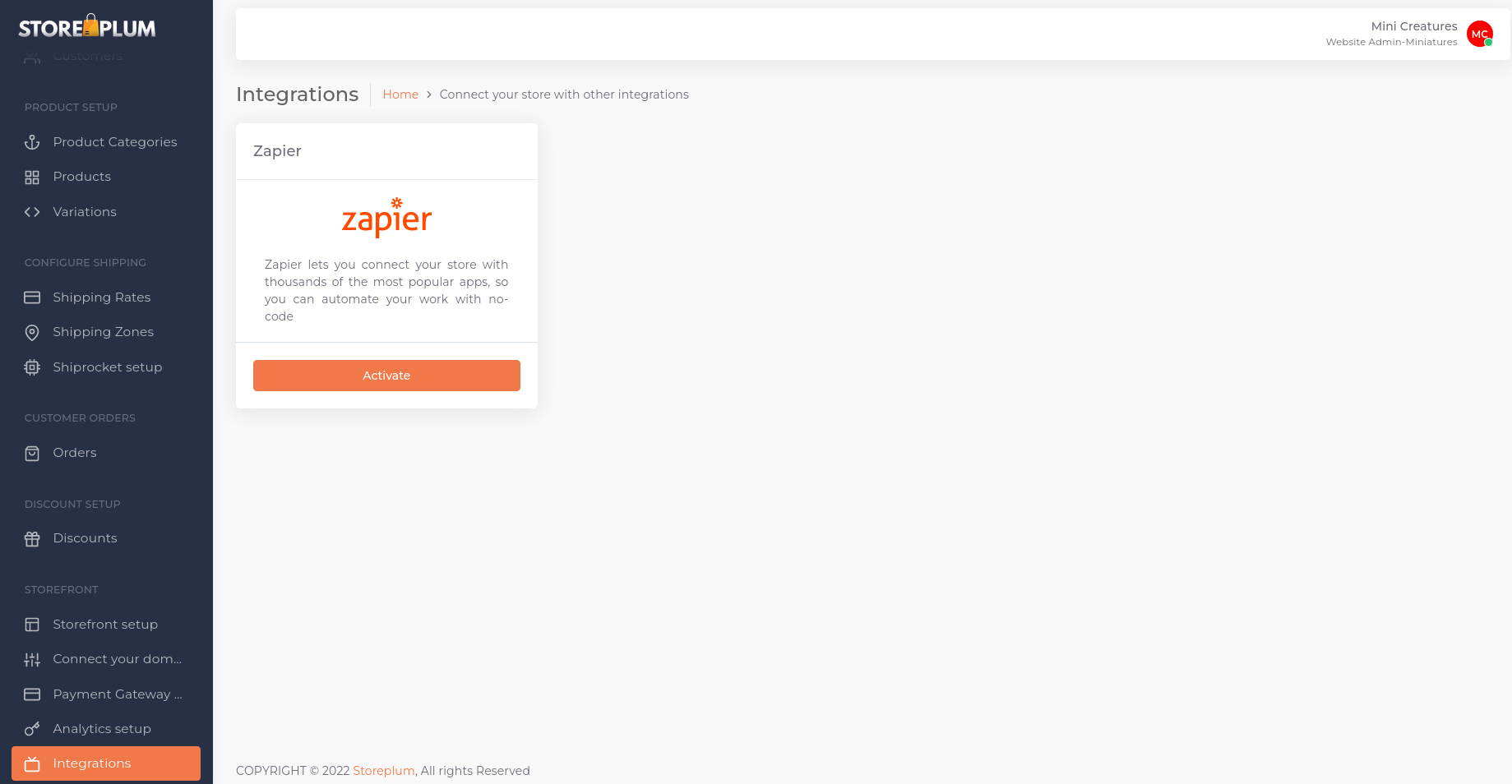
In this section, you will see a list of supported apps by Storeplum. Click on your app and select Activate. Once activated, you will see the API key for this integration on the screen. Copy this key and please make sure to save it in a secure location as it won't be available to view again later.
In case you forget your API key, deactivate the integration and activate it again to get a new key.
Storeplum uses the above API key to allow access to the APIs. Include this API key in all requests to Storeplum API in a header with name X-SP-INTEGRATION
X-SP-INTEGRATION: <YOUR-API-KEY>
Products
Product entity is the crux of every online store built on Storeplum. Products can be added manually through Storeplum dashboard or through external API integration services like Zapier and others.
Product States
Following are the various states of a Product
| Status | Description |
|---|---|
UPCOMING |
When a new product is added in a Storeplum account, it's default state is UPCOMING. From here, the Product can move to either ACTIVE or INACTIVE state. Products with status UPCOMING are not visible on the online store. |
ACTIVE |
A product can be marked as ACTIVE only when all of it's attributes are added and relevant product images are uploaded. ACTIVE products are visible on the online store. |
INACTIVE |
A product can be marked as INACTIVE when a user no longer wants it to be visible on their online store. In certain cases like no inventory, A product moves to INACTIVE state by default. An inactive product can be moved back to be active through Storeplum dashboard. |
Create Product
curl "https://api.storeplum.in/integration/action/product/save" \
  -H "Content-Type: application/json"\
  -H "X-SP-INTEGRATION: <YOUR-API-KEY>"\
  -d '{
    "customerCode": "your-storeplum-customer-code",
    "productName": "Product name",
    "productDescription": "Product description",
    "productSEOTag": "product-seo-tag",
    "productCategorySeoTag": "product-category-seo-tag",
    "originalPrice": 123.45,
    "basePrice": 123.45,
    "configDefaultDraftName": "Product default configuration name",
    "productionTimeEstimate": 7,
    "taxRate": 12.5,
    "isTaxInclusive": true,
    "skuCount": 1200
  }'
Successful Response
200 OK
{
  "isSuccess": true,
  "responseMessage": "success",
  "object": {
    "product" : {
      "productID": 123
    }
  }
}
Failed Response
400 BAD REQUEST
{
  "isSuccess": false,
  "responseMessage": "Invalid input",
  "object": {}

}
In order to add a product through API, you'll need to use the API integration key from the dashboard and make the below request-
HTTP Request
POST https://api.storeplum.in/integration/action/product/save
HTTP Headers
X-SP-INTEGRATION: <YOUR-API-KEY>
Body Parameters
| Parameter | Type | Description |
|---|---|---|
| customerCode | String | Storeplum Customer Code which can be found in your Storeplum Dashboard. |
| productName | String | Name of the product |
| productDescripion | String | Description of the product. Seen on product landing page. |
| productSEOTag | String | A unique SEO friendly slug for product page. Please note that two different products cannot have the same slug. |
| productCategorySeoTag | Number | A unique SEO friendly slug for product category page. A New Product Event from platform returns the productCategorySeoTag for that product. |
| originalPrice | Number | Product selling price on the website. |
| basePrice | Number | Defaults to original product price. Discounted price cannot be greater than original price. This price is shown next to the striked off value of the original product price on the website. |
| configDefaultDraftName | String | Default draft name for this product. Draft name can be same as product name. |
| productionTimeEstimate | Integer | Add an estimated time in days to ship this product from your warehouse. |
| taxRate | Number | Tax rate in percentage associated with the product. |
| isTaxInclusive | Integer | Is tax inclusive in product base price? Enter 1 if tax is inclusive with product price, 0 otherwise. |
| skuCount | Integer | Default number of stock keeping units for this product. |
Webhooks
Storeplum API allows you to listen to various platform events through webhooks. Simply add register your webhook url for a specific event that you'd like to listen to and Storeplum will send you a push notification as soon as the event is triggered.
The following events are currently supported by platform-
- New Customer Event
- New Product Event
- New Order Event
- Order Shipped Event
New Customer Event
Add your webhook url to start listening to new customer event. This event is triggered whenever a new customer is added to your Storeplum account.
curl "https://api.dashboard.storeplum.in/integration/subscribe" \
  -X POST
  -H "X-SP-INTEGRATION: <YOUR-API-KEY>"\
  -d '{
    "hookUrl"      : "<your-webhook-url>",
    "customerCode" : "<your-storeplum-customer-code>",
    "triggerType"  : "new_customer",
    "platform"     : "Your app name which is interested in listening to this event."
  }'
Success Response
200 OK
{
  "isSuccess": true,
  "responseMessage": "success",
  "object": {
    "uniqueID" : "subscription-id-for-this-webhook"
  }
}
Failed Response
400 BAD REQUEST
{
  "isSuccess": false,
  "responseMessage": "invalid_input",
  "object": {}

}
HTTP Request
POST https://api.dashboard.storeplum.in/integration/subscribe
Body Parameters
| Parameter | Type | Description |
|---|---|---|
| hookUrl | String | Your webhook url to listen for this event. |
| customerCode | String | Storeplum Customer Code which can be found in your Storeplum Dashboard. |
| triggerType | String | new_customer |
| platform | String | Your app name which is interested in listening to this event. Please check the Integrations section in your Storeplum Dashboard to view supported apps. For example, if your app name is Zapier, then add zapier as your platform value. If your app name is Pabbly, add pabbly as your platform value and so on. |
Add New Product Event
Add your webhook url to start listening to Add New Product event. This event is triggered whenever a new product is added to your Storeplum account.
curl "https://api.dashboard.storeplum.in/integration/subscribe" \
  -X POST
  -H "X-SP-INTEGRATION: <YOUR-API-KEY>"\
  -d '{
    "hookUrl"      : "<your-webhook-url>",
    "customerCode" : "<your-storeplum-customer-code>",
    "triggerType"  : "new_product",
    "platform"     : "Your app name which is interested in listening to this event."
  }'
Success Response
200 OK
{
  "isSuccess": true,
  "responseMessage": "success",
  "object": {
    "uniqueID" : "subscription-id-for-this-webhook"
  }
}
Failed Response
400 BAD REQUEST
{
  "isSuccess": false,
  "responseMessage": "invalid_input",
  "object": {}

}
HTTP Request
POST https://api.storeplum.in/integration/subscribe
Body Parameters
| Parameter | Type | Description |
|---|---|---|
| hookUrl | String | Your webhook url where you'd like to listen for this event. |
| customerCode | String | Storeplum Customer Code which can be found in your Storeplum Dashboard. |
| triggerType | String | new_product |
| platform | String | Your app name which is interested in listening to this event. Please check the Integrations section in your Storeplum Dashboard to view supported apps. For example, if your app name is Zapier, then add zapier as your platform value. If your app name is Pabbly, add pabbly as your platform value and so on. |
New Order Event
Add your webhook url to start listening to add new order event. This event is triggered whenever a new order is added to your Storeplum account.
curl "https://api.dashboard.storeplum.in/integration/subscribe" \
  -X POST
  -H "X-SP-INTEGRATION: <YOUR-API-KEY>"\
  -d '{
    "hookUrl"      : "<your-webhook-url>",
    "customerCode" : "<your-storeplum-customer-code>",
    "triggerType"  : "new_order",
    "platform"     : "Your app name which is interested in listening to this event."
  }'
Success Response
200 OK
{
  "isSuccess": true,
  "responseMessage": "success",
  "object": {
    "uniqueID" : "subscription-id-for-this-webhook"
  }
}
Failed Response
400 BAD REQUEST
{
  "isSuccess": false,
  "responseMessage": "invalid_input",
  "object": {}

}
HTTP Request
POST https://api.storeplum.in/integration/subscribe
Body Parameters
| Parameter | Type | Description |
|---|---|---|
| hookUrl | String | Your webhook url where you'd like to listen for this event. |
| customerCode | String | Storeplum Customer Code which can be found in your Storeplum Dashboard. |
| triggerType | String | new_order |
| platform | String | Your app name which is interested in listening to this event. Please check the Integrations section in your Storeplum Dashboard to view supported apps. For example, if your app name is Zapier, then add zapier as your platform value. If your app name is Pabbly, add pabbly as your platform value and so on. |
Order Shipped Event
Add your webhook url to start listening to Order Shipped event. This event is triggered whenever a order is marked as Shipped in your Storeplum account.
curl "https://api.dashboard.storeplum.in/integration/subscribe" \
  -X POST
  -H "X-SP-INTEGRATION: <YOUR-API-KEY>"\
  -d '{
    "hookUrl"      : "<your-webhook-url>",
    "customerCode" : "<your-storeplum-customer-code>",
    "triggerType"  : "order_shipped",
    "platform"     : "Your app name which is interested in listening to this event."
  }'
Success Response
200 OK
{
  "isSuccess": true,
  "responseMessage": "success",
  "object": {
    "uniqueID" : "subscription-id-for-this-webhook"
  }
}
Failed Response
400 BAD REQUEST
{
  "isSuccess": false,
  "responseMessage": "invalid_input",
  "object": {}

}
HTTP Request
POST https://api.storeplum.in/integration/subscribe
Body Parameters
| Parameter | Type | Description |
|---|---|---|
| hookUrl | String | Your webhook url where you'd like to listen for this event. |
| customerCode | String | Storeplum Customer Code which can be found in your Storeplum Dashboard. |
| triggerType | String | order_shipped |
| platform | String | Your app name which is interested in listening to this event. Please check the Integrations section in your Storeplum Dashboard to view supported apps. For example, if your app name is Zapier, then add zapier as your platform value. If your app name is Pabbly, add pabbly as your platform value and so on. |
Errors
Standard REST error codes used by Storeplum API
| Error Code | Meaning |
|---|---|
| 400 | Bad Request -- Your request is invalid. |
| 401 | Unauthorized -- Your API key is wrong or missing. |
| 403 | Forbidden -- You do not have the privilege to view this resource. |
| 404 | Not Found -- The specified resource could not be found. |
| 405 | Method Not Allowed -- You tried to access a resource with an invalid method. |
| 406 | Not Acceptable -- You requested a format that isn't json. |
| 410 | Gone -- The resource requested has been removed from our servers. |
| 429 | Too Many Requests -- You're requesting too many resources. |
| 500 | Internal Server Error -- We had a problem with our server. Try again later. |
| 503 | Service Unavailable -- We're temporarily offline for maintenance. Please try again later. |